


Disclosure: Some links in this Skreenly review are affiliate links. If you buy through them, I may earn a commission at no extra cost to you. The vendor gave me a free review copy. I tested it live on my own computer before writing this, and I’ll tell you honestly where it falls short. No income claims.
I clicked one button, recorded my screen, and the editor opened straight away. In a couple of minutes I had zoomed in on my headline, added a text label, blurred my private bookmarks bar, drawn an arrow, and exported a finished MP4. All of it inside Google Chrome, without a monthly subscription.
In this Skreenly review I’ll show you my real test step by step with screenshots: how recording works, what the editor can do, how fast the export is, what it costs, the honest pros and cons, and who should (and shouldn’t) buy it.
Skreenly Review: Quick Summary
- What it is: a screen recorder and timeline video editor that runs as a Chrome extension on Windows, Mac, Chromebook and Linux
- Vendor: Stephanie Hayes, sold through WarriorPlus
- Price: $67 one-time, one licence key for 2 computers, 30-day money-back guarantee. No subscription
- My test: recorded my whole screen, then added a zoom, a text label, a blur and an arrow, and exported a 43-second MP4 (14 MB) in the background
- Biggest catches: you add it to Chrome in developer mode, recordings live inside Chrome (so back them up), and captions and AI titles need your own paid API keys
- My verdict: if you’re tired of paying every month for Loom or Camtasia, Skreenly is a smart buy at $67, once
- My bonus: buy through my link and you also get my Mega Bonus Vault (38 marketing resources + my $0 Funnel guide)
Watch My Skreenly Video Review
Prefer to watch? This is a live screen recording of my test in Chrome, under 5 minutes:
What Is Skreenly?
Skreenly is a screen recorder and video editor in one Chrome extension. It records your screen, your webcam and your voice, then opens the recording in a timeline editor where you can cut mistakes and add zooms, text, blur, arrows, boxes, spotlights and freeze frames. When you’re done, it exports an MP4, GIF, MP3 or WAV to your Downloads folder.
The big difference from Loom, Camtasia or Descript is the business model: you pay once, and everything runs on your own computer. Your recordings aren’t uploaded to anyone’s server, so there’s no storage plan to upgrade and no monthly bill.
How I Tested Skreenly (Step by Step)
I installed Skreenly version 1.16 in Chrome on my Windows laptop, activated my licence key, and made a short tutorial-style recording of my own homepage. Here’s exactly what happened.
1. Choose what to record
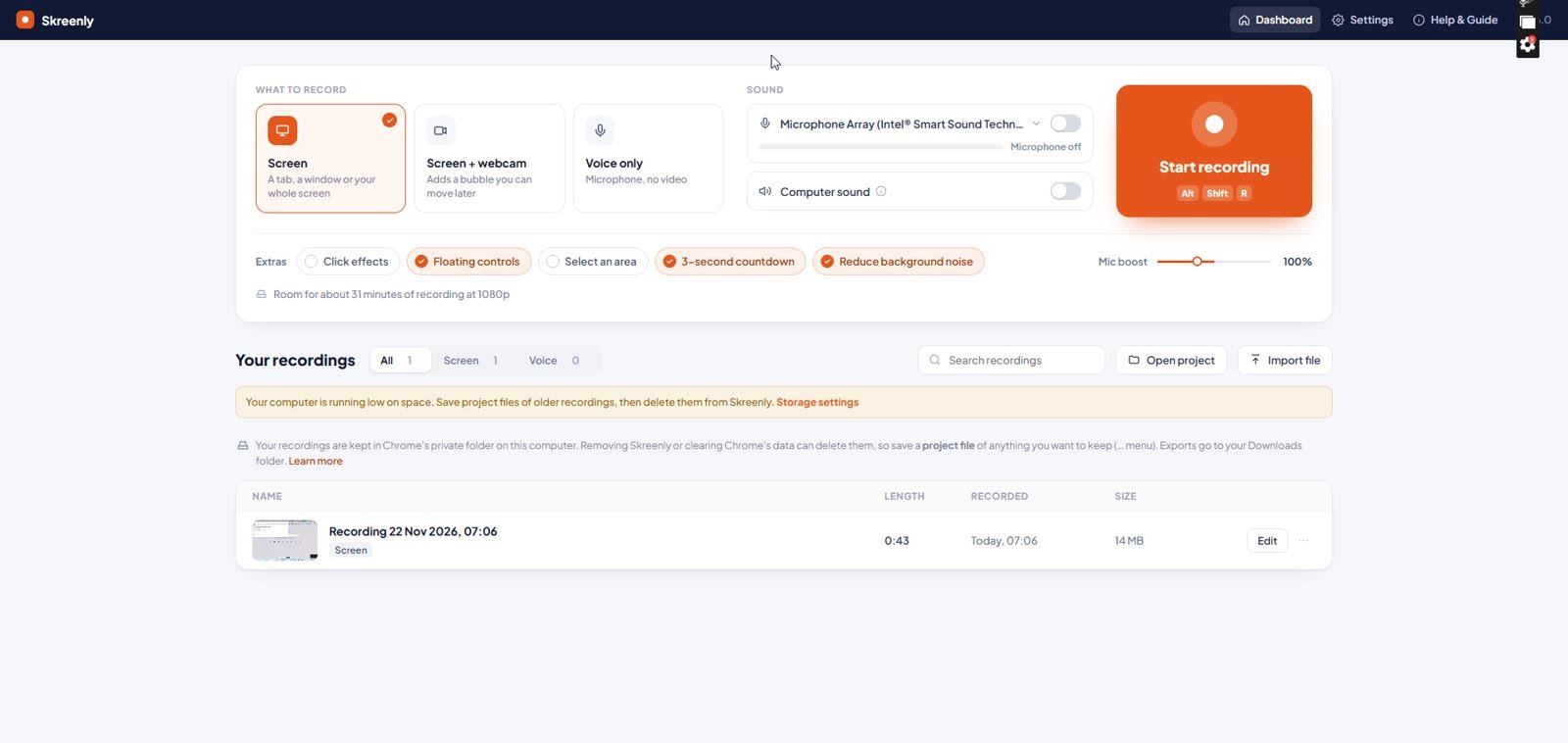
The dashboard asks what you want to record: Screen (a tab, a window or your whole screen), Screen + webcam (adds a bubble you can move later) or Voice only. On the right you pick your microphone, with a live level meter, and you can switch on your computer’s sound too. Below that are the extras: click effects, floating controls, select an area, a 3-second countdown and background noise reduction. It even tells you how many minutes of recording you have room for.
2. Start recording
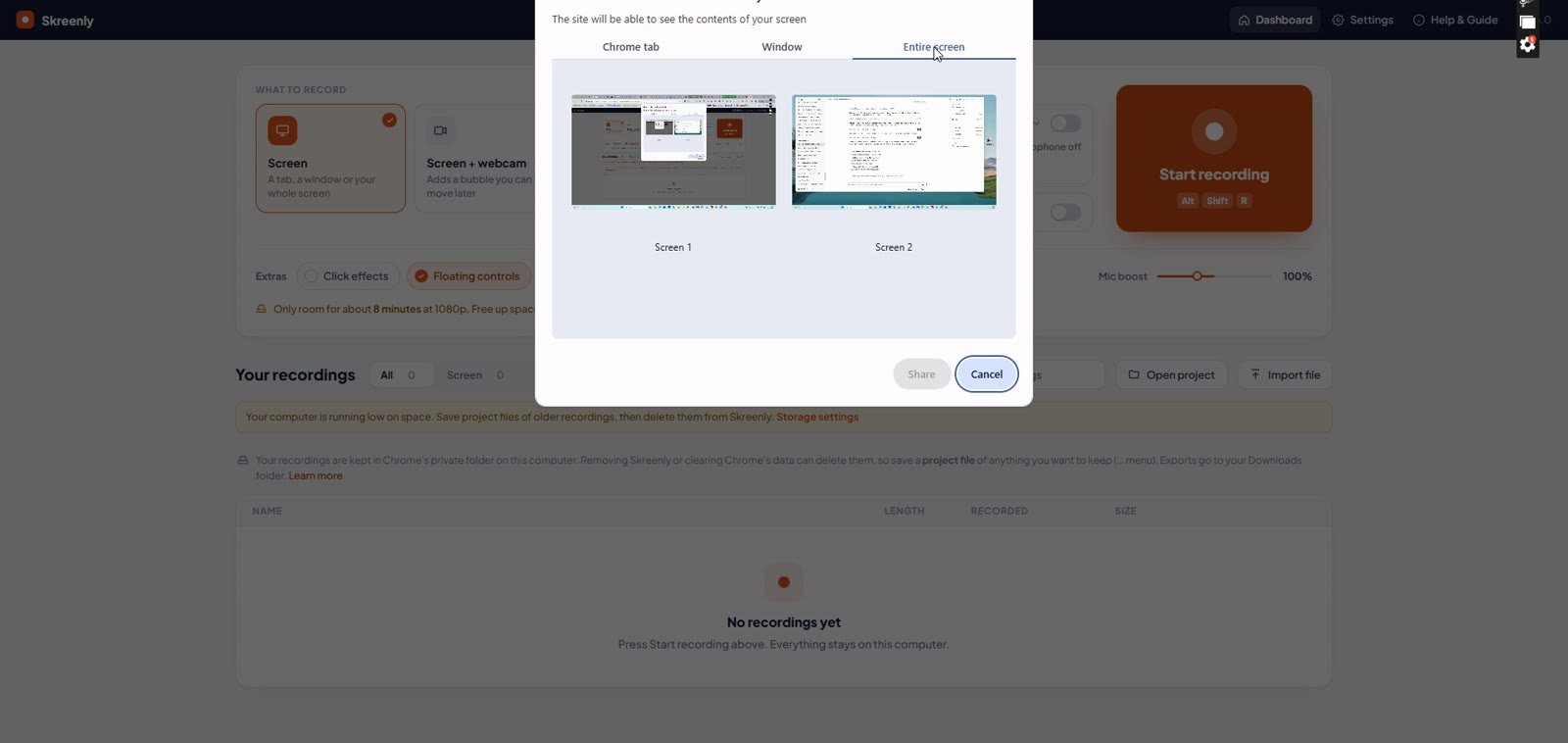
Click Start recording (or Alt+Shift+R) and Chrome asks what to share: a Chrome tab, a window or your entire screen. I chose my whole screen and pressed Share.
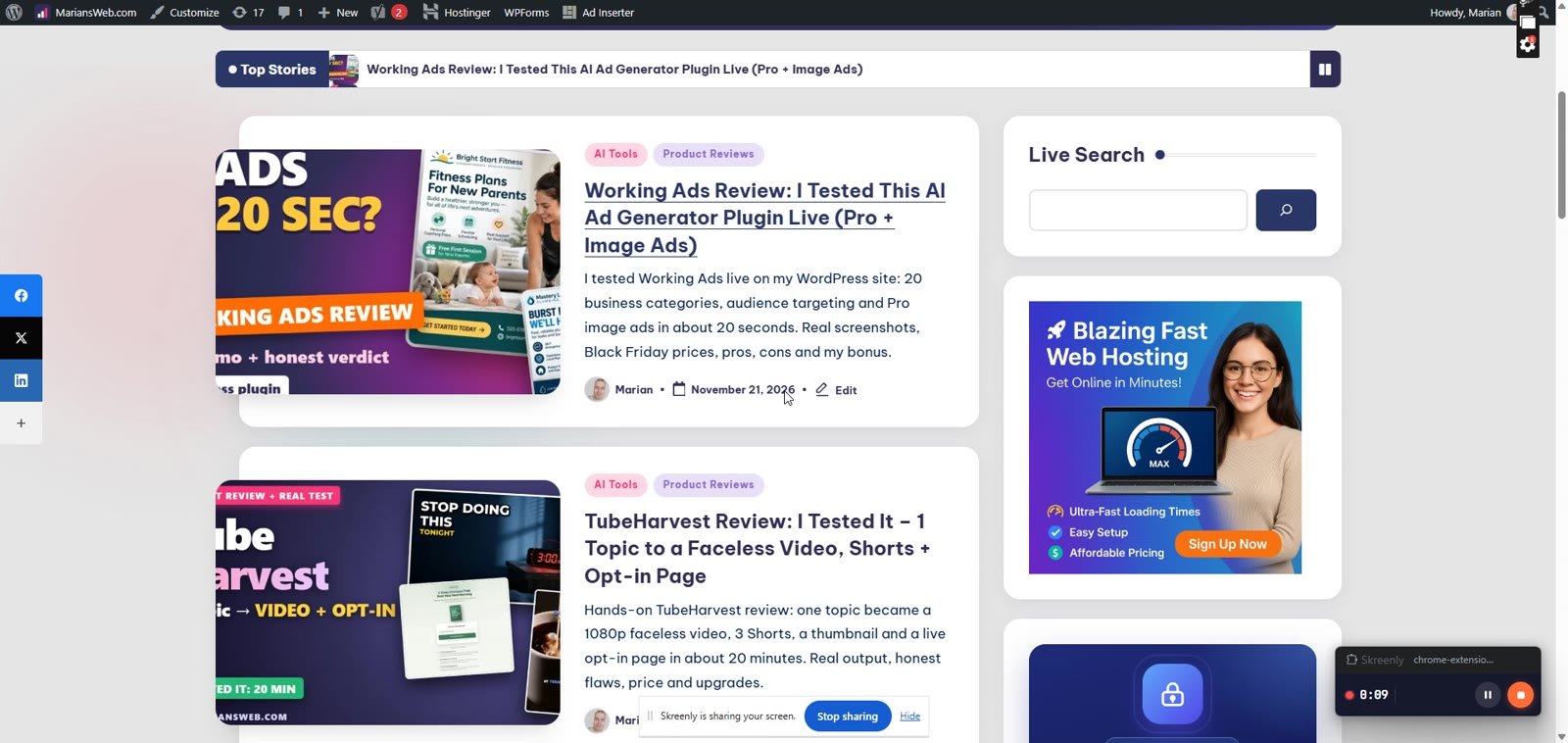
After the countdown it records, and small floating controls show the time with pause and stop buttons. I opened my website and moved around like I was making a quick tutorial.
One honest note: in my test, the Alt+Shift+S stop shortcut didn’t stop the recording. The stop button on the floating controls worked straight away, so that’s what I’d use.
3. Edit on the timeline
As soon as you stop, the editor opens. There’s a preview at the top, a timeline at the bottom, and a toolbar with Split, Voice-over, Add sound, Image or video, Zoom, Blur, Text, Captions, Arrow, Box, Spotlight and Freeze frame. On the right are panels for captions and transcripts, sound, the look of the video, and YouTube details.
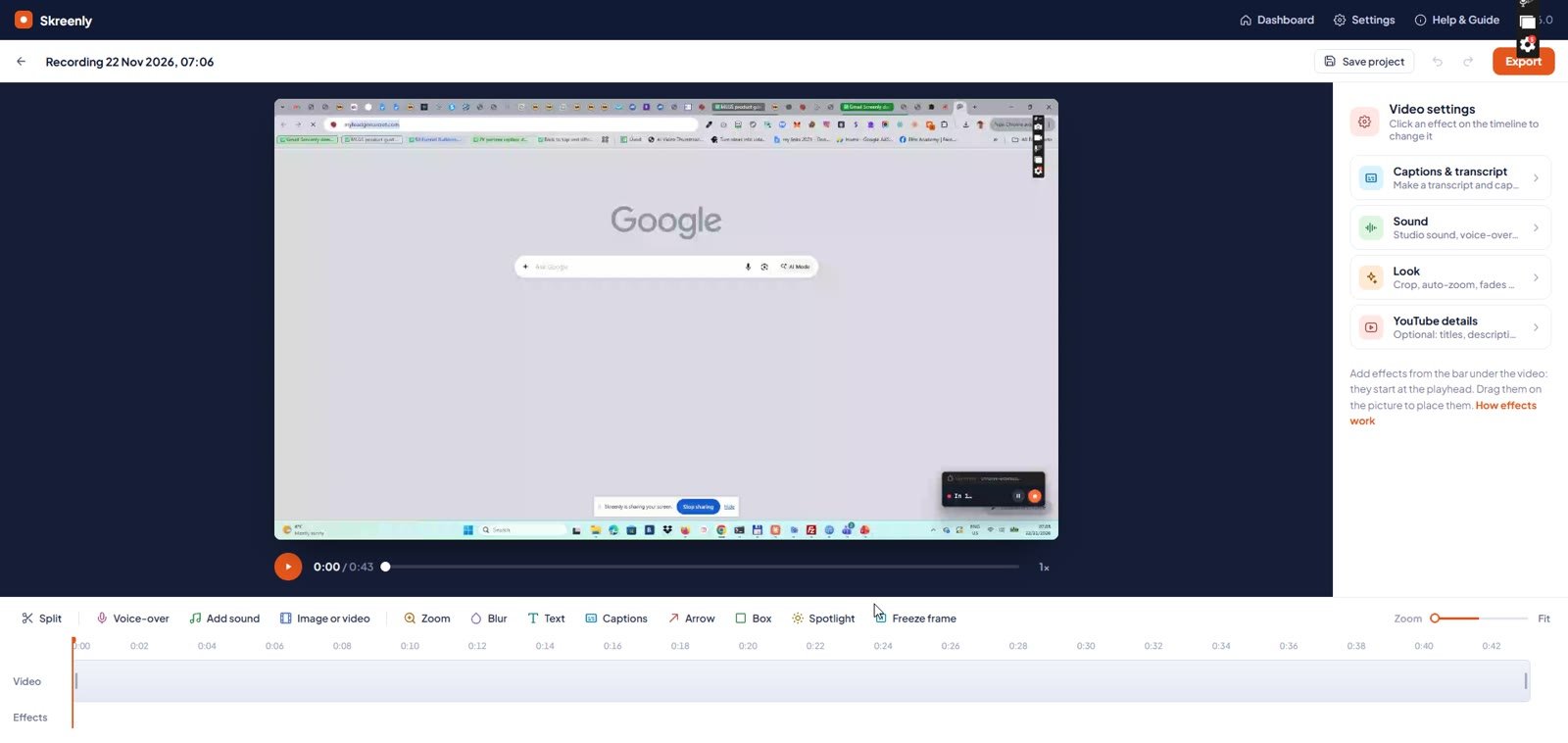
Zoom: move the playhead, click Zoom, then click a spot or drag a box around what you want people to see. Skreenly added a smooth 2.1x zoom on my headline.
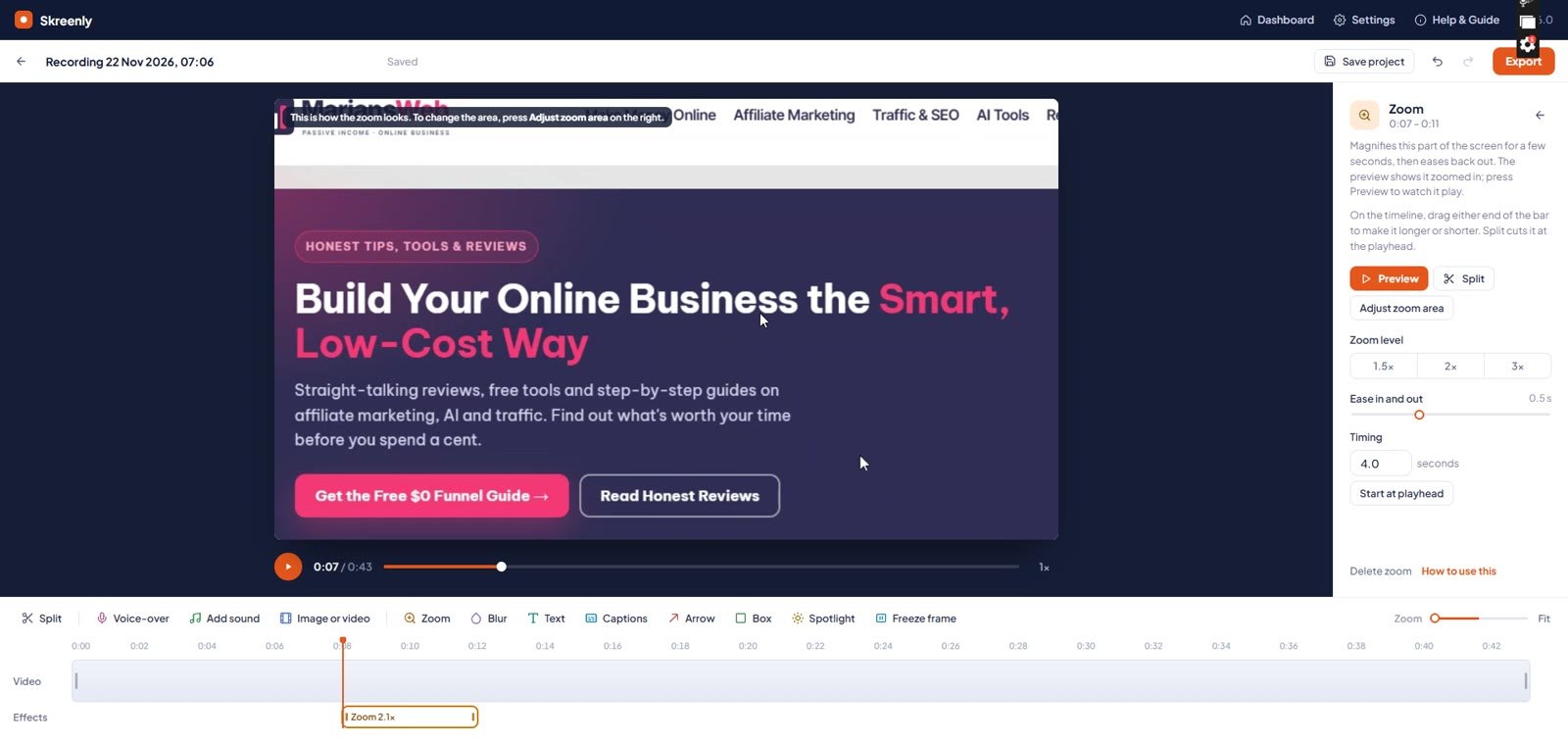
Text: click Text and type your label. You can place it at the top, middle or bottom, choose Bold, Subtle or Boxed, and change the size, colour and timing. Every effect becomes a bar on the timeline that you can drag longer or shorter.
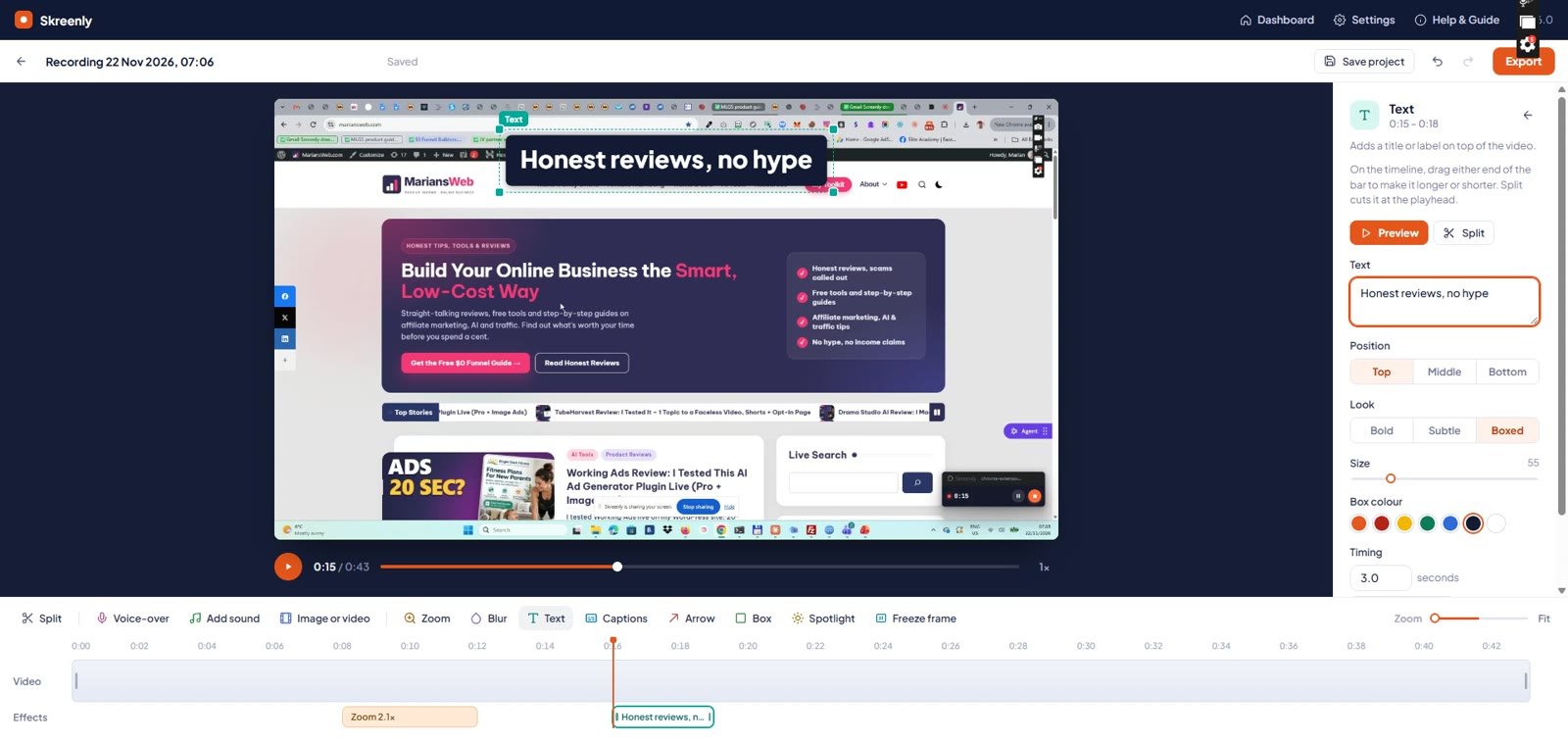
Blur: this is the feature I’ll use the most. Drag a box over anything private, like an email address or, in my case, my bookmarks bar. You can blur it, pixelate it or cover it with a solid block, and set the strength.
Arrow: press where the arrow should start and drag to what it points at. There are three line thicknesses, three arrowhead sizes and several colours.
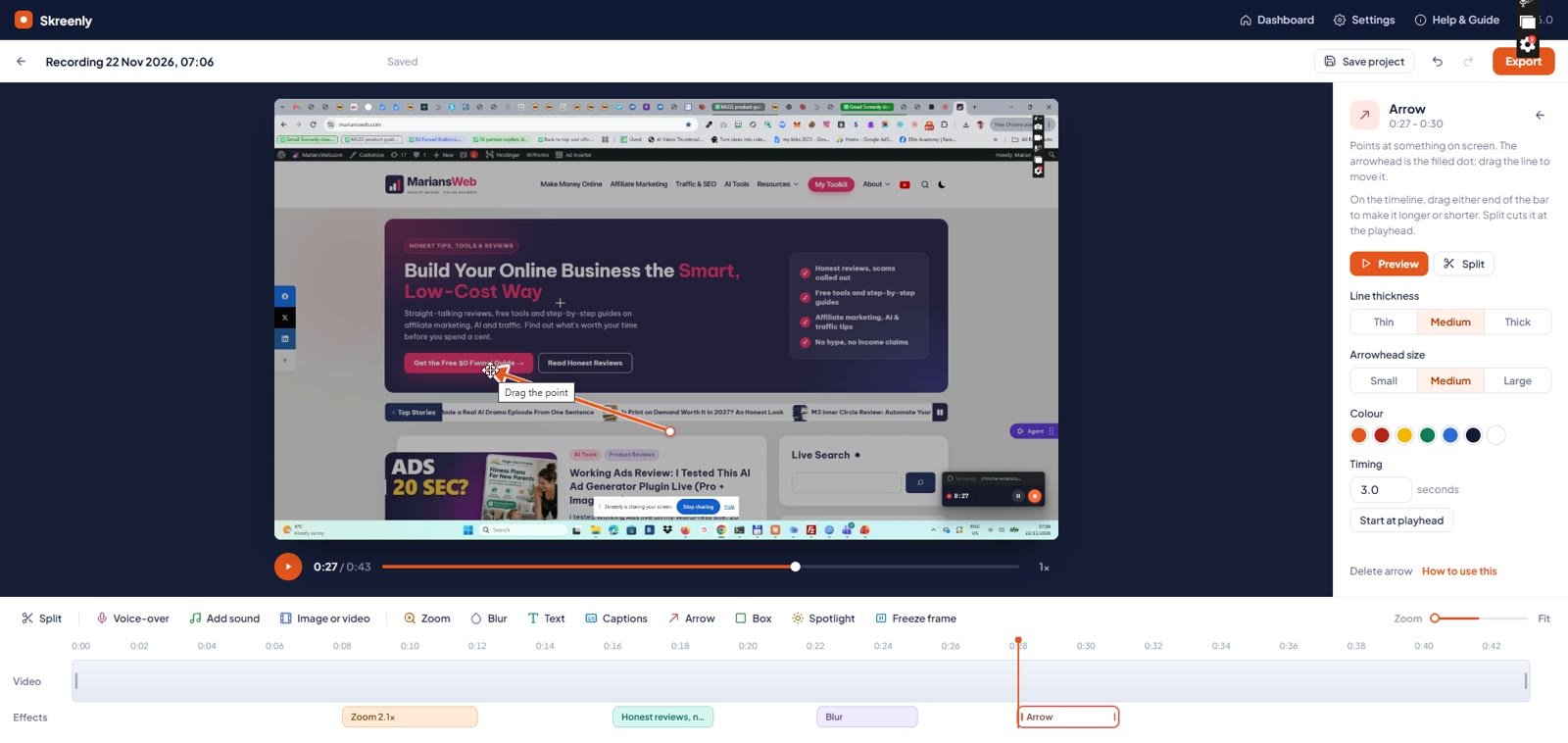
The Look panel adds a crop, a fade in from black, a fade out at the end, and an option to hold the last picture a few seconds longer, so your video doesn’t stop abruptly.
4. Export your video
Click Export and choose MP4 video, GIF, MP3 audio or WAV audio, pick the video size, and tick “Also send to Google Drive” if you want a share link from your own Drive.
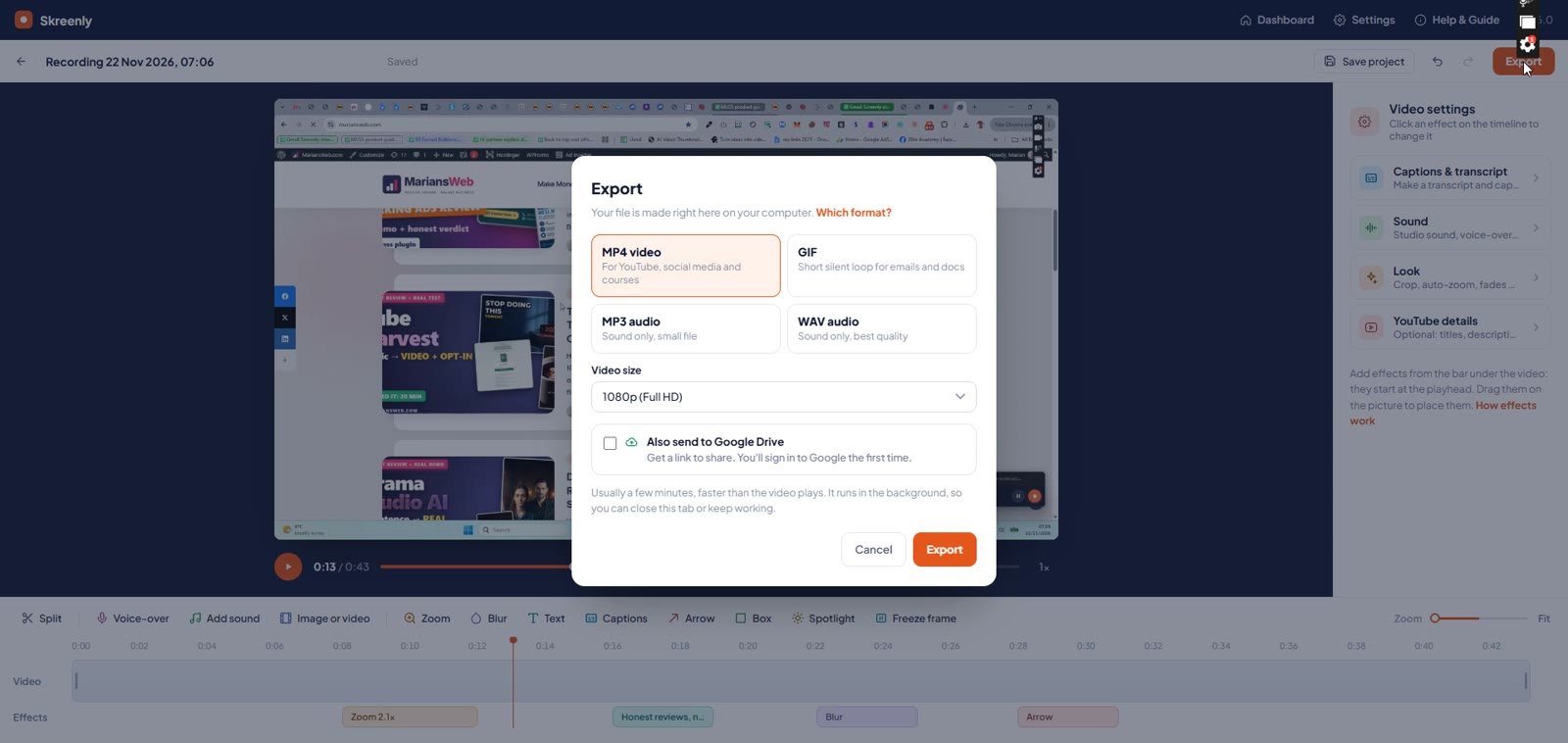
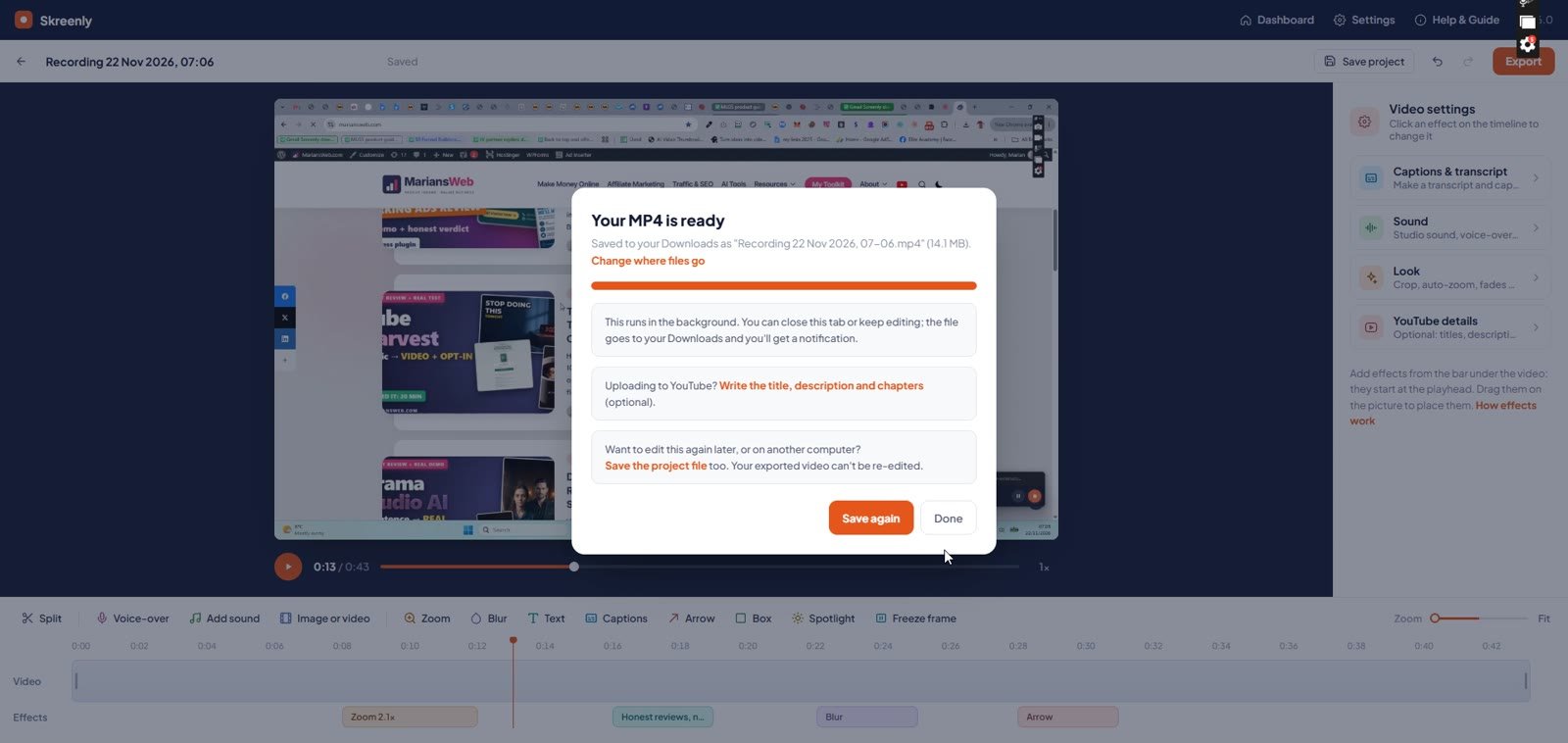
The export runs in the background. A few seconds later my file was in my Downloads folder: 14 MB for a 43-second 1080p clip. The success screen also offers to save a project file, so you can edit the video again later or on another computer.
Settings and Optional AI Features
In Settings you choose the video quality (720p, 1080p, 1440p or 4K), the frame rate (30 or 60 fps), the countdown, and your default export format and file name.
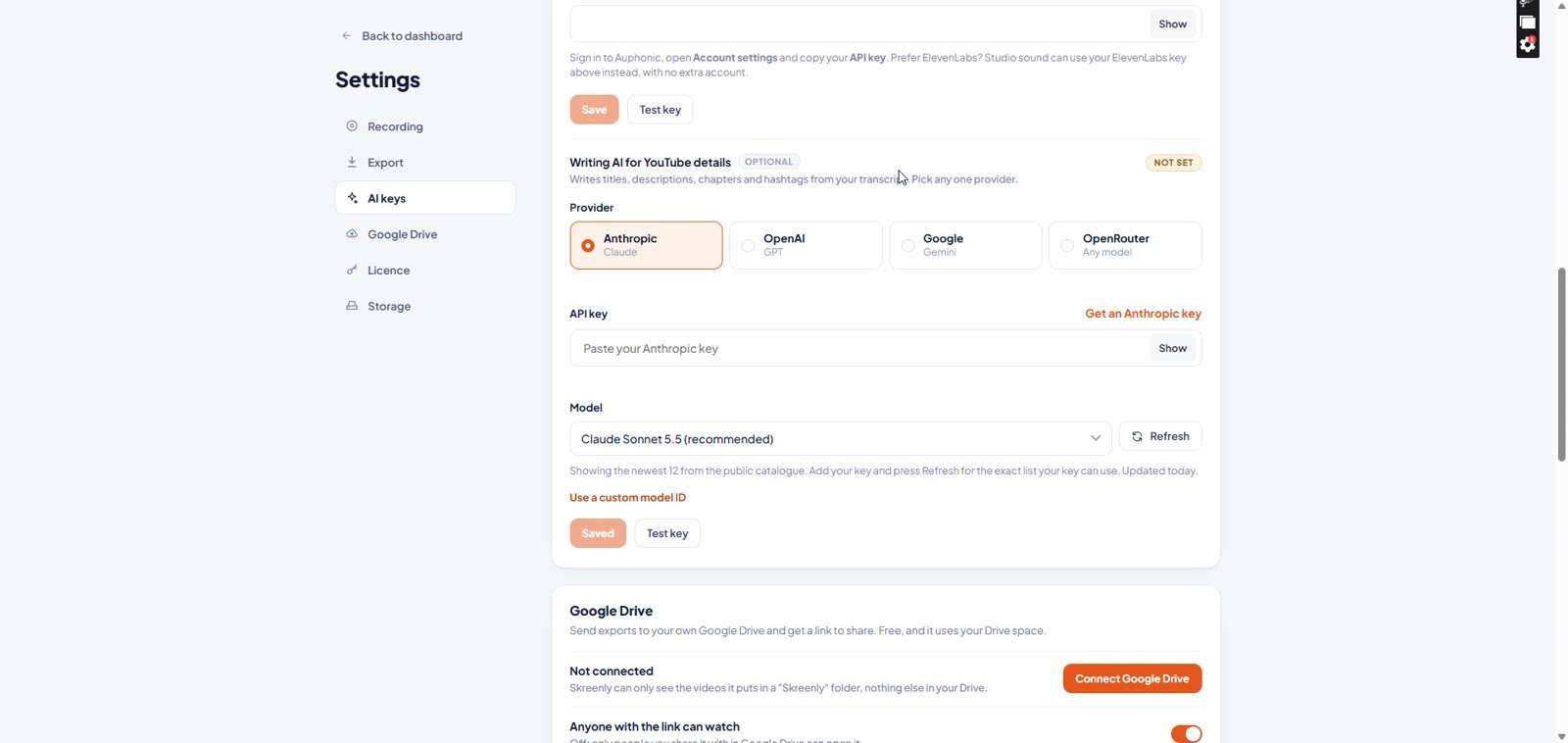
Recording, editing, effects and export never need a key. The optional extras use your own API keys, and you pay those providers directly: captions and transcripts with ElevenLabs, Studio sound with Auphonic or ElevenLabs, and YouTube titles, descriptions and chapters with Claude, OpenAI, Gemini or OpenRouter. I didn’t add any keys for this test.
Where Are Your Recordings Stored?
Inside Chrome, on your own computer. Nothing is uploaded unless you choose to send an export to your own Google Drive. That’s great for privacy, but it comes with one rule: removing Skreenly or clearing Chrome’s data can delete your recordings. Use “Save project file” or “Back up all recordings” for anything you want to keep. Exports go to your normal Downloads folder.
Skreenly Price: What Does It Cost?
Skreenly costs $67, one time. You get the full version with every feature, one licence key that works on 2 computers and never expires, and a 30-day money-back guarantee. I didn’t see any upsells.
Skreenly vs Loom vs Camtasia (3-year cost)
| Tool | How you pay | Cost over 3 years | Videos stored |
|---|---|---|---|
| Skreenly | One payment | $67 | Your computer |
| Loom Business | Monthly ($15/month) | $540 | Their cloud |
| Camtasia Create | Yearly ($249/year) | $747 | Your computer |
To be fair, the subscriptions give you things Skreenly doesn’t: Loom has viewer analytics and comments, and Descript lets you edit by transcript. If you just need to record, edit and export screen videos, you don’t need to rent a tool for that.
My Skreenly Bonus: The Mega Bonus Vault
If you get Skreenly through my link, you also get my Mega Bonus Vault: 38 extra marketing resources plus my own $0 Funnel guide. After you buy, open your WarriorPlus purchase and click my bonus link. On my bonus page you can also leave your email to reserve the bonus, so the claim steps land in your inbox.
Skreenly Pros and Cons
What I like
- One-time price: $67 once instead of a monthly or yearly subscription
- Light and fast: no heavy desktop app; the editor opened instantly and the export ran in the background
- Beginner-friendly editor: zoom, text, blur and arrows each took me a few seconds
- Private: your videos stay on your own computer
- Flexible exports: MP4, GIF, MP3 and WAV, plus an optional Google Drive link
What I don’t like
- Developer-mode install: you unzip it and load it in Chrome’s developer mode. The instructions are clear, but it feels technical the first time
- Recordings live inside Chrome: save project files or back them up before you ever remove the extension
- Stop shortcut: Alt+Shift+S didn’t stop my recording; the floating stop button did
- Click effects need an extra permission: Chrome asks to let Skreenly “read and change data on all websites” when you switch them on
- AI extras cost extra: captions and YouTube details need your own paid API keys (usually cents per video)
Who Is Skreenly For?
- Course creators and coaches who record lessons and want to cut mistakes fast
- Affiliate marketers making product reviews and demos (zoom in on the part that sells)
- Freelancers and support teams who show clients where to click, and need to blur private details
- Anyone tired of subscriptions for a basic screen recorder
Who should skip it: if you need viewer analytics and comments on your videos, Loom is still the better fit. If you edit long, multi-track course productions, a full desktop editor like Camtasia makes more sense. And there’s no mobile app.
Skreenly FAQ
Is Skreenly a one-time payment?
Yes. It’s $67 once, with no monthly or yearly fee. The only possible extra costs are the optional AI features, which you pay to your own API provider.
Does Skreenly work on Windows and Mac?
Yes. It runs in desktop Google Chrome on Windows, Mac, Chromebook and Linux. I tested it on Windows 11. On a Mac, macOS asks you to allow screen recording for Chrome the first time.
Can Skreenly record my computer’s sound?
Yes. Switch on “Computer sound”, then pick Entire screen in Chrome’s share box and tick the option to share system audio.
Do I need an AI or API key?
No. Recording, editing, effects and export work without any key. Keys are only needed for captions, Studio sound and AI-written YouTube details.
How many computers can I use it on?
One licence key works on 2 computers. Settings shows how many are in use, and you can deactivate a computer yourself.
Is there a refund?
Yes. The sales page offers a 30-day money-back guarantee through the vendor’s support email.
Related: other tools I tested hands-on: my Working Ads review, my FusionVision review and my TubeHarvest review.
Final Verdict
Skreenly does the everyday screen-video job well: record, zoom, blur, label, export, all inside Chrome and all on your own computer. It isn’t Loom (no viewer analytics) and it isn’t a heavy pro editor, and the developer-mode install and Chrome-based storage need a little care. But if you’re tired of paying every month for a screen recorder, Skreenly is a smart buy at $67, once.
Skreenly is not affiliated with Google, Loom, TechSmith (Camtasia) or Descript. All trademarks belong to their owners. Prices and features were checked on November 22, 2026 and may change.