



Disclosure: Some links in this FusionVision review are affiliate links. If you buy through them, I may earn a commission at no extra cost to you. I installed FusionVision on my own laptop and tested every tool before writing this, and I’ll tell you honestly where it falls short.
You’ve probably done this: pasted a YouTube transcript into ChatGPT and asked for a summary. It works… until the important part is on the screen. The pricing slide. The dashboard with the real numbers. The step the presenter clicks while saying “just do this”. None of that is in the transcript, so the AI never sees it.
FusionVision by Dave Guindon promises to fix exactly that. It’s a desktop app that actually watches your videos (the pictures and the words) and then turns them into clips, posts, guides and answers. One payment, no subscription, and it can run on a free AI model on your own computer.
So I put it to the test. In this FusionVision review I’ll show you what happened when I installed it on a modest laptop, ran it with no API key at all, and fed it one of my own tutorials. You’ll see every tool, the real results, the flaws, and whether it’s worth $27.
FusionVision Review: Quick Summary
- Product: FusionVision, an AI video analyzer desktop app for Windows 10/11 and Apple Silicon Macs
- Creator: Dave Guindon (AppBreed Software)
- Price: $27 one-time with coupon VISION40 (regular $67) at the time of writing. No subscription, no upsells
- AI options: free local vision models (one-click install), or your own OpenAI, Claude, Gemini or OpenRouter key
- 10 tools: Discover, Analysis, Findings, Assets, Clips, Documents, Posts, Images, Chat and Export knowledge
- Included: Windows + Mac, up to 10 computers, commercial rights, free updates, 8 launch bonus playbooks, 30-day money-back guarantee
- My verdict: One of the most useful AI tools I’ve tested this year. It really watches the screen, runs free and private on your own PC, and turns one video into a week of content. Small local models write a little rough, so polish before you publish
Watch My FusionVision Video Review
Prefer to watch? Here’s my full FusionVision review on video, with a demo: the free local AI setup, my own video going through all 10 tools, the clips, posts and guide it made, and my honest verdict.
What Is FusionVision?
FusionVision is an AI video analyzer that lives on your computer. You paste a link from almost any video site (YouTube, TikTok, Instagram, Loom, Vimeo…) or drop in a file. FusionVision downloads it, pulls out the key frames, transcribes the audio, and lets a vision AI read both together.
Then it keeps what it saw, and as you’ll see in this FusionVision review, that changes everything. Every tool after that (clips, blog posts, guides, chat) works from that stored knowledge, so you don’t have to re-upload or re-explain the video every time.
The sales page shows a nice example of why that matters: at 28 minutes into a webinar, the transcript only talks about VAT. No total, no price. But FusionVision looked at the frame and recorded the real checkout total, with its timestamp. That’s the whole idea: the money is on the screen, not in the transcript.
How I Tested FusionVision for This Review
For this FusionVision review I wanted a realistic test, not a showcase on a monster PC. So I used:
- A Windows laptop with a small 4 GB NVIDIA graphics card (RTX 2050)
- No API key: only the free local model that FusionVision installs for you
- One of my own videos, my Hostinger AI Website Builder tutorial (5:16), so I could check every answer against a video I know by heart
Setup: Free Local AI, No API Key Needed
Out of the box, FusionVision had no AI engine set up. In Settings → AI provider → Local, it recommended a model that fits my machine: Qwen3-VL 2B, a 1.5 GB download. One click to install it, one more click to install the local engine, and it was ready.
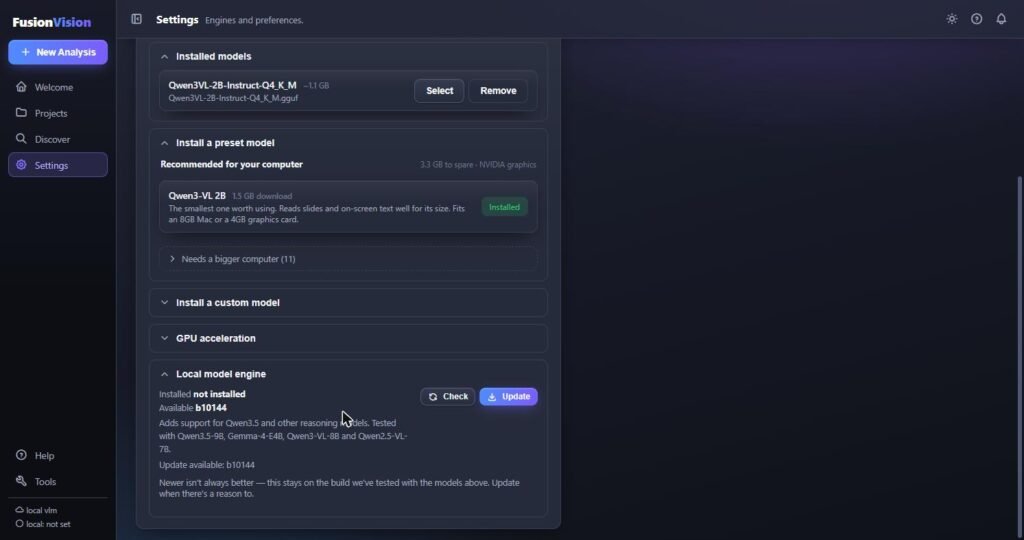
Honest note: the app warned me that the model is a tight fit for my 4 GB graphics card. It still ran fine. If you have a bigger graphics card (or an M-series Mac with more memory), you can pick bigger, smarter models from the same list.
FusionVision Review of Features: All 10 Tools Tested
1. Discover: Find Videos That Beat Their Channel
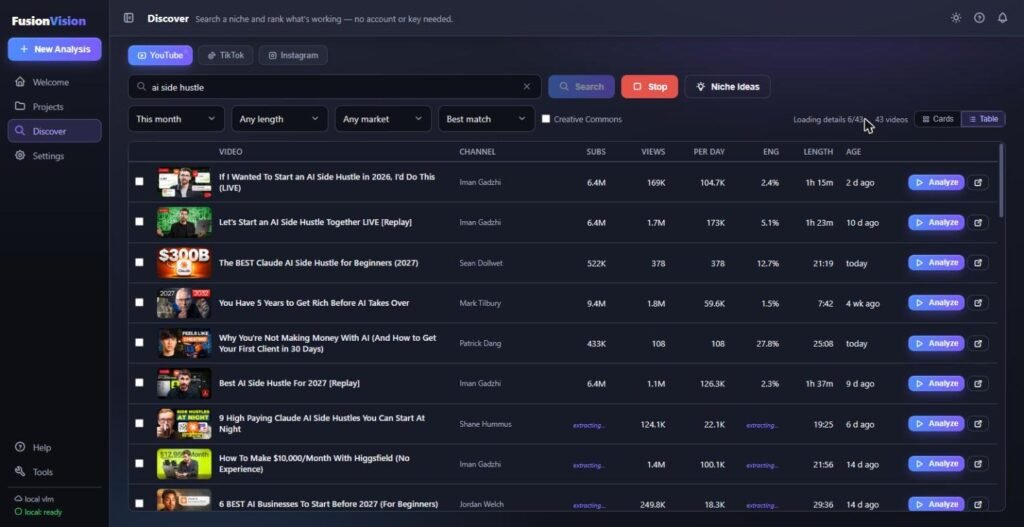
Discover is a research tool. I searched “ai side hustle” and it pulled 43 YouTube videos, ranked by what’s actually working: views, views per day, engagement, and how far a video beats its channel’s usual numbers (the “outliers”). It also searches TikTok and Instagram. No account, no API key, nothing to pay, and one click sends any video straight into analysis.
2. Analysis: A Summary That Actually Saw the Screen
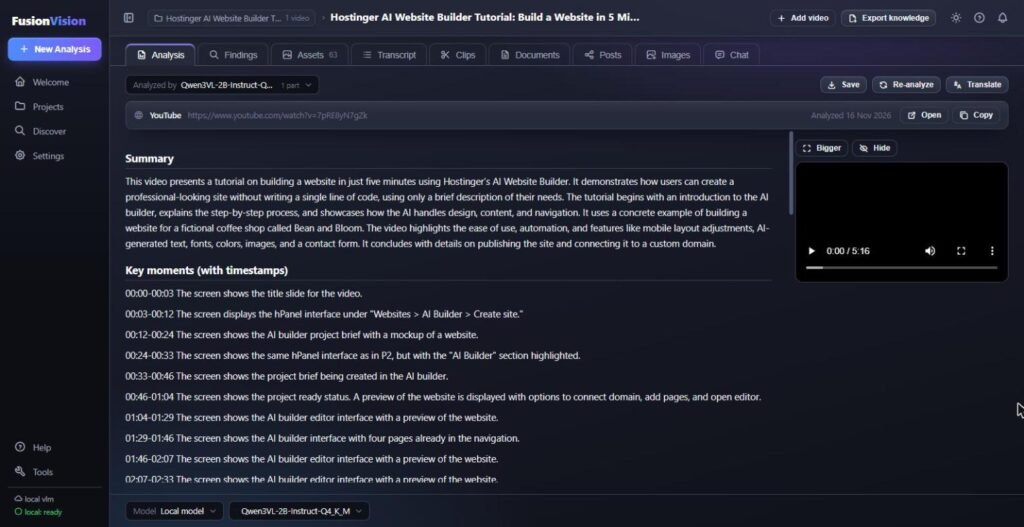
I clicked New analysis and pasted my YouTube link. FusionVision ran six steps: download, key frames, transcription, reading the frames, reading the transcript, and writing the report. On my small laptop, the 5-minute video was done in about 5 minutes, and it cost me $0.
The report was accurate. It even named the demo coffee shop from my video, “Bean and Bloom”, and listed key moments with timestamps that jump to that spot in the video. With this tiny model, some of the key moments sound a bit repetitive (“the screen shows the editor…”), so for richer reports use a bigger model or your own API key.
3. Findings: Pick a Lens (Claims, Steps, The Offer…)
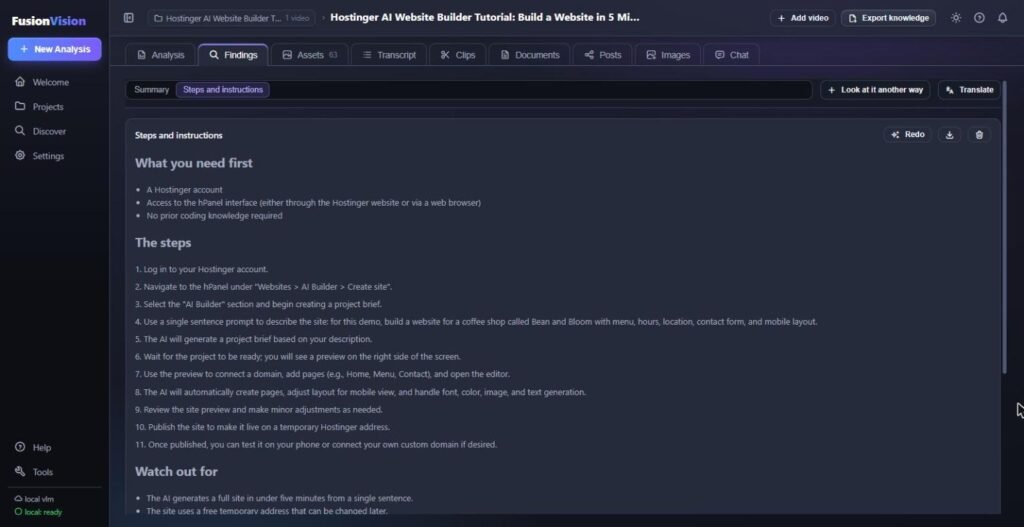
Findings pulls structured information out of a video through a “lens”: hook teardown, claims and evidence, steps and instructions, concepts and terms, people and sources, timeline, and the offer. You can also type your own question.
I chose Steps and instructions, and it turned my tutorial into a proper how-to: what you need first, eleven clear steps, and what to watch out for. That’s a ready-made checklist or lead magnet in seconds. For affiliate marketers, “Claims and evidence” and “The offer” are gold: you can see what a vendor promises versus what they actually show on screen.
4. Assets: Every Frame, Searchable
Assets is a library of every frame FusionVision pulled: 63 pictures from my video, each with a description of what was on screen or what was being said. And it’s searchable. I typed “mobile” and it found the six frames where I showed the mobile version of the site. You can save any frame at full resolution, which is perfect for blog screenshots.
5. Clips: Captioned Shorts, Rendered on Your PC
One click on Find clips gave me four short moments, each with a title, its opening line and tags like “strong hook”. You choose vertical (9:16), square or wide, the framing, and the caption style, then render it right on your computer. No upload, no credits and no watermark. It even writes the post caption with hashtags.
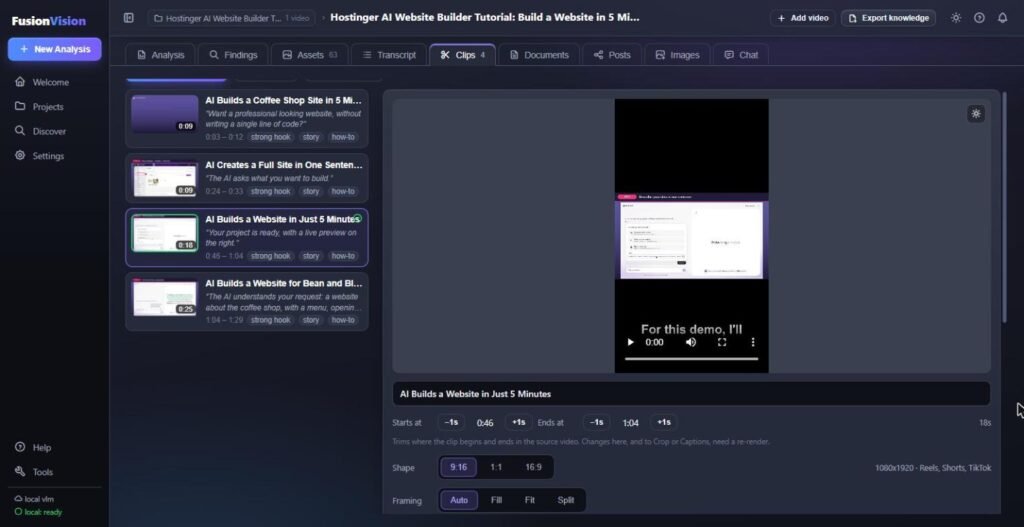
One thing to know: my video is a screen recording, and in vertical format “Fit” mode leaves big black bars above and below. For talking-head videos, the Auto or Split framing works much better.
6. Posts: Six Platforms (and WordPress)
Posts writes for a blog, LinkedIn, Facebook, Instagram, X and Pinterest, with each platform’s limits built in. Blog posts can go straight to WordPress. I asked for a LinkedIn post about getting a website live in five minutes, and about 20 seconds later it was done, with a live character counter. The small local model did repeat one sentence, so give it a quick read before posting.
7. Documents: Designed Guides From Your Video
Documents builds designed PDF-style guides: a step-by-step guide, a course workbook, webinar notes or a product teardown. I chose the step-by-step guide and got a cover page plus four parts built from my video. If you make lead magnets or course material, this alone can save hours.
8. Chat: Ask the Video, Get Timestamped Answers
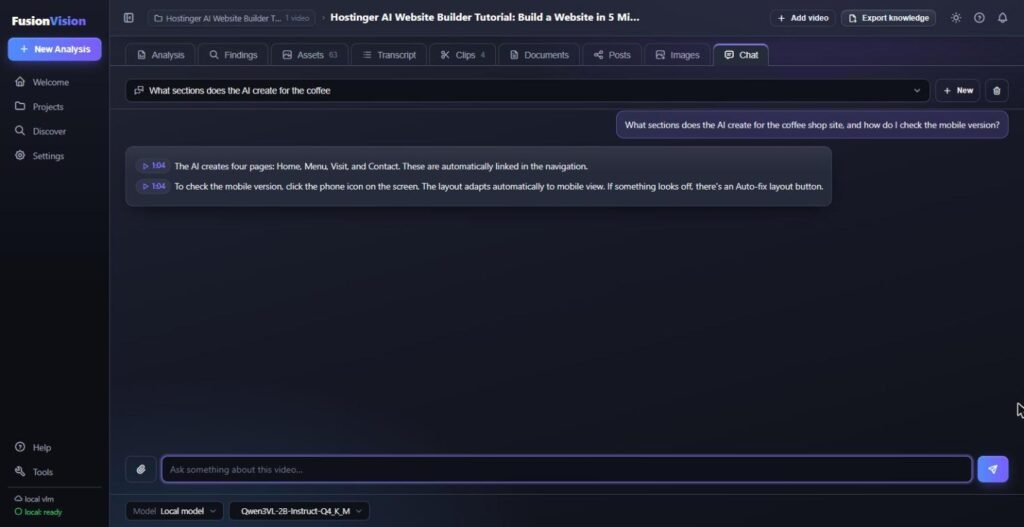
I asked which pages the AI website builder created and how to check the mobile version. FusionVision answered correctly (Home, Menu, Visit and Contact, plus the phone icon and the Auto-fix layout button), and each answer had a timestamp I could click. I checked it against my own script: spot on.
9. Images and 10. Export Knowledge
Images makes infographics and ad images from the video’s content, but it needs an image AI key (OpenAI, Gemini, OpenRouter or fal.ai). There’s no free local option for images. Export knowledge turns a whole project into one file you can hand to ChatGPT, Claude, Gemini or NotebookLM, so the AI you already use can work with hours of video it never had to watch.
FusionVision Review of Pricing: $27 One-Time (Coupon VISION40)
At the time of writing, FusionVision is on a launch special: $27 one-time with coupon VISION40, instead of the regular $67. According to the sales page there are no upsells and no OTOs: you go straight to your download page. Your one-time license includes:
- All 10 tools, Windows + Mac versions
- Install on up to 10 computers you own
- Commercial rights: make clips, posts, guides and images for clients
- Free updates and personal support from the developer
- 30-day money-back guarantee
The only extra cost is optional: if you want the strongest cloud models or the Images tab, you pay OpenAI, Claude, Gemini or OpenRouter directly for your own usage.
Launch Bonuses: 8 FusionVision Playbooks
During the launch, Dave also includes eight PDF playbooks (20-22 pages each) that pair with the app: The Outlier Method, The Video Teardown Playbook, The Hook Library, The Lead Magnet Factory, Video to Product, The Short-Form Clip Playbook, Save-Worthy Infographics and The AI Prompt Vault.
My Exclusive FusionVision Bonuses ($707 in Total)
If you get FusionVision through my link, you also get 6 bonuses I made to help you publish what the app creates: a 7-day repurposing content calendar, a Video-to-WordPress SEO checklist, YouTube chapter and description templates, a Pinterest pin swipe file, webinar-to-email follow-up swipes, and client service agreement templates. Together with Dave’s 8 playbooks, that’s $707 in bonuses. The offer ends on November 24.
FusionVision Review: Pros and Cons
✅ Pros
- Really watches the screen, not just the transcript
- Runs free on your own computer, no API key needed
- Your videos stay private on your disk
- One video becomes clips, posts, guides and answers
- Answers and findings come with timestamps you can check
- One-time price, no upsells, Windows + Mac
❌ Cons
- Small local models write a bit repetitive
- Local AI needs a graphics card or Apple Silicon Mac
- The Images tab needs a paid image AI key
- Vertical clips of screen recordings get black bars
- No Linux, Intel Mac or mobile version
Who Is FusionVision For?
- Affiliate marketers who review products: run the vendor’s sales video through “The offer” and “Claims and evidence”
- YouTubers and TikTokers who want Shorts from long videos and want to study what’s beating its channel’s normal numbers (see my guide to growing on YouTube)
- Course creators and bloggers who want guides, workbooks and posts from their own recordings
- Anyone who sits through long webinars and wants the fine print without watching for two hours
Skip it if you’re on Linux or an Intel Mac, or if you only ever need a quick summary of one short clip (a free chat tool is enough for that).
FusionVision vs ChatGPT and Gemini
ChatGPT and Gemini can look at an uploaded video now, and for one short clip that’s often enough. But they have file size and length limits, they forget the video when the chat ends, and they hand you text, not finished clips, screenshots or designed guides. FusionVision keeps everything in a project on your disk, works across many videos at once, and doesn’t meter anything when you use a local model. And with Export knowledge, you can still hand the results to ChatGPT or Claude. It’s not either/or.
My FusionVision Review Verdict
I went in expecting another “AI summary” tool. FusionVision is more than that: a real video-watching workbench that turns one recording into clips, posts, guides and searchable proof, running free and private on a normal laptop. The small local model isn’t a great writer, so my tip is: let the free local model do the watching, then use your own API key only for the pieces you’ll publish. The knowledge is shared, so you don’t pay to re-watch.
So my FusionVision review comes down to this: for $27 one-time, with a 30-day guarantee, it’s an easy recommendation for anyone who creates or studies video content.
🎁 Buying? See the $707 in bonuses you get through my link (until November 24).
FusionVision Review FAQ
Do I need an API key to use FusionVision?
No. Free local vision models install with one click and work without any key. I did my whole test that way. A key is optional, for stronger cloud models and for the Images tab.
Will FusionVision run on my computer?
It runs on Windows 10/11 (64-bit) and Apple Silicon Macs (macOS 14+). For free local AI you want an NVIDIA graphics card on Windows or an M-series Mac. It worked on my laptop with a 4 GB card using the smallest model. Linux, Intel Macs and phones aren’t supported.
How long does FusionVision take to analyze a video?
On my small laptop, a 5-minute video took about 5 minutes on the free local model. Faster graphics cards are much quicker, and you can queue several videos and walk away.
Are my videos uploaded anywhere?
Your video files stay on your computer. With a local model, nothing leaves your machine. With your own cloud key, only the frames and text a job needs go to the AI you chose.
Is there a FusionVision discount or coupon?
Yes. At the time of writing, coupon VISION40 brings the price from $67 to $27 one-time during the launch.
Is FusionVision worth it?
If you work with video content (reviews, YouTube, courses, webinars), yes. For $27 once it replaces a clip tool, a transcript summarizer and a video research tool that would each cost a monthly fee. Just polish anything the small local model writes before you publish it.
Earnings disclaimer: prices, features and bonuses are as shown on the vendor’s sales page at the time of writing and may change. Testimonials and speed figures on the sales page are the vendor’s own. This FusionVision review is my honest opinion based on my own test. No income claims are made.